Workflows & Lifecycles
Cascadia PLM uses a dual state management system to control how items progress through their lifecycle and how changes are approved.
Two Types of Definitions
Cascadia supports two distinct types of state machine definitions:
| Type | Purpose | Features | Used By |
|---|---|---|---|
| Lifecycle | Passive state machines | Guards only, no approvals | Parts, Documents, Requirements |
| Workflow | Active approval processes | Guards, actions, approvals, lifecycle effects | Change Orders |
Lifecycles
Lifecycles define the states an item can be in and the allowed transitions between states. They are passive - transitions only occur when explicitly triggered by a user or system action.
Example: Part Lifecycle
Preliminary → Under Review → Released → Superseded
                                    ↘ Obsolete
Key characteristics:
- Define valid states for item types
- Control which transitions are allowed
- Support guards (conditions that must be met)
- No built-in approval voting
- Transitions triggered manually or by workflow effects
Workflows
Workflows are active approval processes used by Change Orders. They include all lifecycle features plus:
- Approval requirements (voting)
- Transition actions (send notifications, update fields, etc.)
- Lifecycle effects (coordinate changes to affected items)
Example: ECO Workflow
Draft → Impact Review → Technical Review → Approved → Released
Workflows List Overview
The Workflows page displays all workflow definitions with summary statistics.
Summary Information
Each workflow card displays:
- Workflow name and description
- Number of states and transitions
- Item types using this workflow
- Active/inactive status
Filtering
- Search: Find workflows by name
- Type Filter: Show workflows, lifecycles, or both
Lifecycles List Overview
The Lifecycles page displays all lifecycle definitions.
Summary Information
Each lifecycle card displays:
- Lifecycle name and description
- Number of states and transitions
- Item types using this lifecycle
States
Each state in a lifecycle or workflow has:
| Property | Description |
|---|---|
| Name | Display name (e.g., "Under Review") |
| Color | Visual indicator in the UI |
| Description | Optional explanation of the state |
| Initial | Whether items start in this state |
| Final | Whether this is an end state |
State Types
- Initial States: Where new items begin (e.g., "Preliminary", "Draft")
- Intermediate States: Work-in-progress states (e.g., "Under Review", "Approved")
- Final States: End states that typically lock the item (e.g., "Released", "Obsolete", "Cancelled")
State Colors
States use colors for quick visual identification:
| Color | Common Usage |
|---|---|
| Gray | Draft, initial states |
| Blue | In progress, under review |
| Yellow | Pending approval |
| Green | Released, approved |
| Red | Rejected, cancelled |
| Purple | Obsolete, superseded |
Transitions
Transitions define the allowed paths between states. Each transition has:
| Property | Description |
|---|---|
| Name | Display name for the transition action |
| From State | Source state |
| To State | Destination state |
| Description | Optional explanation |
| Guards | Conditions that must pass before transitioning |
| Allowed Roles | Users who can execute this transition |
| Actions | Operations to perform (workflows only) |
| Approval Requirement | Voting requirements (workflows only) |
| Lifecycle Effects | Item state coordination (workflows only) |
Guards
Guards are conditions that must be satisfied before a transition can occur. Guard types include:
Field Value Guards
Check that a field meets a condition:
equals/not_equalscontainsis_empty/is_not_emptygreater_than/less_than/greater_or_equal/less_or_equal
Example: Require description before release
Field: description
Operator: is_not_empty
Error: "Description is required before release"
User Role Guards
Verify the user has required roles:
Required Roles: [Engineer, Quality]
Require All: false  (any matching role is sufficient)
Approval Count Guards
Check that sufficient approvals have been received:
Required Count: 2
Required Roles: [Manager, Lead Engineer]
Actions (Workflows Only)
Actions execute during transitions. Supported action types:
| Action Type | Description |
|---|---|
send_notification | Email users about the transition |
update_field | Modify a field value on the item |
create_task | Create a follow-up task |
push_lifecycle_changes | Update affected item states (legacy) |
execute_script | Run custom logic |
Actions can be configured to run before or after the transition completes.
Approval Requirements (Workflows Only)
For workflows requiring approval:
| Setting | Description |
|---|---|
| Required Count | Number of approvals needed |
| Required Roles | Which roles can approve (optional) |
| Require All | Whether all specified roles must approve |
Users vote "Approve" or "Reject" with optional comments. The transition only proceeds when the approval count is met.
Using the Workflow Builder
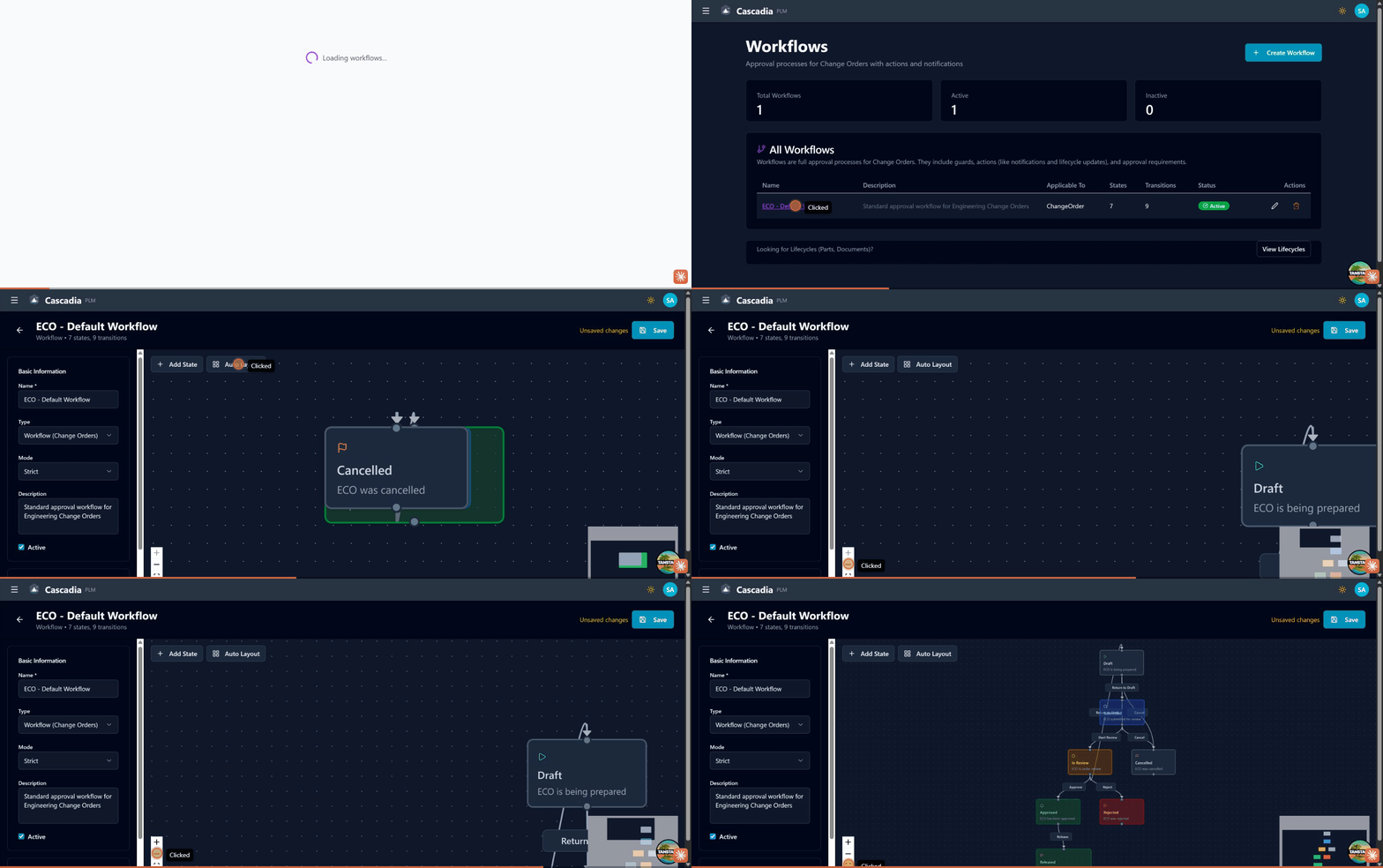 The visual workflow builder: designing states and transitions for ECO approval workflows.
Access the workflow builder from Workflows in the sidebar.
Creating a New Definition
- Click + New Workflow or + New Lifecycle
- Enter a name and description
- Select applicable item types
- Use the visual editor to add states and transitions
Visual Editor
The workflow builder uses a drag-and-drop interface:
Canvas Controls
- Zoom: Use the +/- buttons or mouse wheel
- Pan: Click and drag on empty canvas area
- Fit View: Click the fit button to center the diagram
Working with States
- Add State: Click the "Add State" button
- Move State: Drag a state to reposition it
- Edit State: Click a state to select it, then edit in the side panel
- Delete State: Select and click the delete button
Working with Transitions
- Add Transition: Click "Add Transition" and select from/to states
- Edit Transition: Click the transition line to select it
- Delete Transition: Select and click the delete button
Configuring States
Select a state to open the properties panel:
- Name: Display name for the state
- Color: Visual indicator color
- Description: Optional explanation
- Initial: Check if items start in this state
- Final: Check if this is an end state
Configuring Transitions
Select a transition to open the properties panel:
- Basic Info: Name and description
- Guards: Add conditions for the transition
- Actions: Configure operations to perform (workflows only)
- Approval: Set voting requirements (workflows only)
- Lifecycle Effects: Configure affected item coordination (workflows only)
Adding Guards
- Select the transition
- Click "Add Guard" in the Guards section
- Choose the guard type:
- Field Value: Check a field condition
- User Role: Require specific roles
- Approval Count: Require votes
- Configure the guard parameters
- Add an error message to display when the guard fails
Adding Lifecycle Effects
For workflow transitions that should update affected items:
- Select the transition
- Click "Add Effect" in the Lifecycle Effects section
- Configure:
- Change Action: Which affected item action (Release, Revise, etc.)
- Target Lifecycle: The lifecycle to use
- From State: Required current state of affected items
- To State: Target state for affected items
- Validate Guards: Whether to pre-check affected item guards
Default Definitions
Cascadia includes default workflow and lifecycle definitions:
ECO Default Workflow
The default workflow for Change Orders:
Draft → Impact Review → Technical Review → Approved → Released → Closed
Includes lifecycle effects to transition affected items through their lifecycles.
Part Default Lifecycle
The default lifecycle for Parts:
Preliminary → Under Review → Released
                          ↘ Obsolete
Document Default Lifecycle
The default lifecycle for Documents:
Draft → In Review → Approved → Released
                            ↘ Obsolete
Assigning Definitions to Item Types
Lifecycles and workflows are linked to item types through configuration:
- Create the lifecycle/workflow definition
- In the definition settings, select applicable item types
- Save changes
Items of that type will then use the assigned definition.
Viewing Item State
On any item's detail page:
- Current state is shown as a colored badge in the header
- Available transitions appear as action buttons
- Workflow history shows the audit trail of state changes
Best Practices
Designing Lifecycles
- Start simple: Begin with basic states and add complexity as needed
- Use descriptive names: "Submit for Review" is clearer than "Transition 1"
- Add guards thoughtfully: Prevent invalid transitions rather than cleaning up after
- Document states: Use descriptions to explain what each state means
- Test before activating: Validate the workflow logic before going live
Managing Transitions
- Require complete data: Use field guards to ensure items are complete
- Use role guards: Control who can perform critical transitions
- Add helpful error messages: Guide users on how to fix guard failures
Lifecycle Effects Best Practices
- Map all change actions: Ensure each change action has appropriate effects
- Enable guard validation: Catch issues early in the ECO process
- Consider the full path: Ensure affected items can reach their target states
Troubleshooting
Transition Not Available
If a transition button doesn't appear:
- Verify you have the required role
- Check if guards are blocking the transition
- Ensure the item is in the correct "from" state
Guard Failure
If a transition is blocked:
- Read the error message to understand what's missing
- Update the item to satisfy the guard condition
- Retry the transition
Lifecycle Effect Failure
If affected items don't update:
- Verify the lifecycle effect is configured for this transition
- Check that affected items are in the expected "from" state
- Ensure the affected item's lifecycle includes the required transition
See Also
- Change Orders - ECO/ECN workflow details
- Lifecycle Management - Admin configuration
- Parts Management - Working with parts