Requirements Management
Requirements in Cascadia PLM help you capture, track, and verify product requirements throughout the development lifecycle. Link requirements to parts to ensure complete traceability from customer needs to implementation.
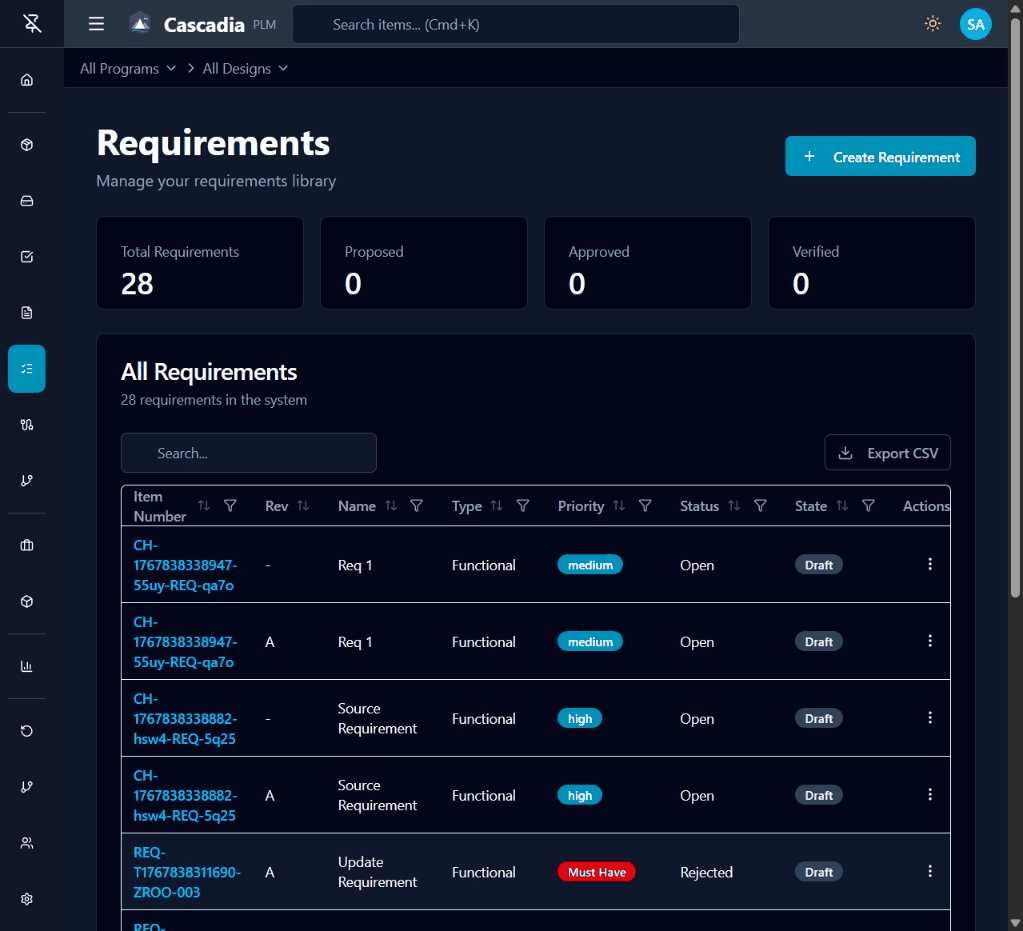 The Requirements page showing all requirements with priority, status, and lifecycle state.
Requirements List Overview
The Requirements page displays all requirements with summary statistics and filtering options.
Summary Statistics
At the top of the page, you'll see four summary cards:
| Statistic | Description |
|---|---|
| Total Requirements | Count of all requirements in the system |
| Proposed | Requirements in initial proposal state |
| Approved | Requirements that have been approved |
| Verified | Requirements that have been verified |
Table Columns
The requirements table shows:
| Column | Description |
|---|---|
| Item Number | Unique identifier (e.g., REQ-T1767...) |
| Rev | Current revision letter |
| Name | Descriptive name of the requirement |
| Type | Category (Functional, Performance, etc.) |
| Priority | Importance level badge (Must Have, High, Medium, Low) |
| Status | Verification status (Open, Approved, Rejected, etc.) |
| State | Lifecycle state (Draft, In Review, Released) |
| Actions | Menu for edit, delete, and other actions |
Filtering and Search
- Program/Design Filter: Use the breadcrumb dropdowns to filter by program and design
- Search: Use the search box to find requirements by item number or name
- Column Sorting: Click column headers to sort ascending/descending
- Export: Click Export CSV to download requirements data
Creating a Requirement
- Navigate to Requirements in the sidebar
- Click + Create Requirement in the top right
- Select a workspace or create a new one
- Fill in the requirement details
Required Fields
| Field | Description |
|---|---|
| Design | The design this requirement belongs to |
| Item Number | Unique identifier (auto-generated) |
Core Fields
| Field | Description |
|---|---|
| Name | Descriptive name (e.g., "System shall support 100 concurrent users") |
| Description | Detailed requirement statement |
| Type | Requirement category (see types below) |
| Priority | Importance level |
| Status | Verification status |
| Source | Origin of the requirement (customer, regulatory, internal) |
| Acceptance Criteria | How to verify the requirement is met |
- Click Create Requirement to save
Requirement Types
| Type | Description | Examples |
|---|---|---|
| Functional | What the product must do | "System shall authenticate users" |
| Performance | Speed, capacity, efficiency | "Response time < 2 seconds" |
| Interface | Integration and connectivity | "Shall communicate via REST API" |
| Safety | Safety-critical requirements | "Emergency stop within 100ms" |
| Regulatory | Compliance requirements | "Shall meet FDA 21 CFR Part 11" |
| Environmental | Operating conditions | "Operate at -20°C to +50°C" |
Priority Levels
Priority indicates the importance of implementing the requirement:
| Priority | Description | When to Use |
|---|---|---|
| Must Have | Required for release | Non-negotiable requirements |
| High | Critical for success | Important customer needs |
| Medium | Desired feature | Standard requirements |
| Low | Nice to have | Future enhancements |
Status vs State
Cascadia distinguishes between two different concepts:
Status (Verification Status)
The Status field tracks whether the requirement has been verified:
| Status | Meaning |
|---|---|
| Open | Not yet verified |
| Approved | Requirement approved for implementation |
| Rejected | Requirement not approved |
| Verified | Testing confirms requirement is met |
State (Lifecycle State)
The State field tracks the requirement's position in the lifecycle workflow:
| State | Meaning |
|---|---|
| Draft | Initial creation, can be edited freely |
| In Review | Under review for approval |
| Released | Officially released, changes require ECO |
Linking Requirements to Parts
To create traceability between requirements and implementing parts:
- Open the requirement detail view
- Navigate to the Relationships tab
- Click + Add Relationship
- Search for and select the part that implements this requirement
- The relationship appears in the relationship list
This creates a "Satisfies" relationship showing which parts fulfill which requirements.
Viewing Traceability
From a requirement, you can see:
- Which parts are linked to it
- The relationship graph visualization
From a part, you can see:
- Which requirements it satisfies
- Impact when requirements change
Revision Control
Requirements follow the same Git-style revision control as parts:
Initial Creation
- New requirements are created in Draft state
- They can be edited freely while in Draft
- Initial revision is typically "-" (unassigned) until released
Making Changes to Released Requirements
Once a requirement is released:
- Create an ECO that includes the requirement
- The ECO creates a branch for your changes
- Modify the requirement on the ECO branch
- Submit the ECO for approval
- When released, changes merge to main and revision increments
Best Practices
Writing Good Requirements
- Be specific: "System shall respond within 2 seconds" not "System shall be fast"
- Be testable: Include measurable acceptance criteria
- Be atomic: One requirement per statement
- Avoid implementation: Describe what, not how
Using Traceability
- Link every requirement to at least one implementing part
- Review where-used before changing requirements
- Update linked parts when requirements change
Organizing Requirements
- Use consistent naming conventions (e.g., "REQ-SYS-001")
- Group by type or subsystem using the Type field
- Use the Source field to track requirement origin
Next Steps
- Parts Management - Creating parts that implement requirements
- Change Orders - Managing requirement changes through ECOs
- Programs and Designs - Organizing requirements in designs