Programs & Designs
Programs and Designs provide the organizational hierarchy for managing product development in Cascadia PLM. Programs represent projects or product lines, while Designs are versioned containers for engineering items.
Understanding the Hierarchy
Cascadia uses a three-level hierarchy:
Organization
  └── Programs (permission boundary)
        └── Designs (version containers)
              └── Items (Parts, Documents, Requirements)
Programs
Programs represent:
- Product development projects
- Customer programs or contracts
- Product lines or families
- Internal R&D initiatives
Programs define permission boundaries - users are assigned to programs and can only access items within their assigned programs.
Designs
Designs are version containers that:
- Hold related items (parts, documents, requirements)
- Support Git-style branching for change control
- Track baselines and release history
- Can be organized into families and variants
Programs Management
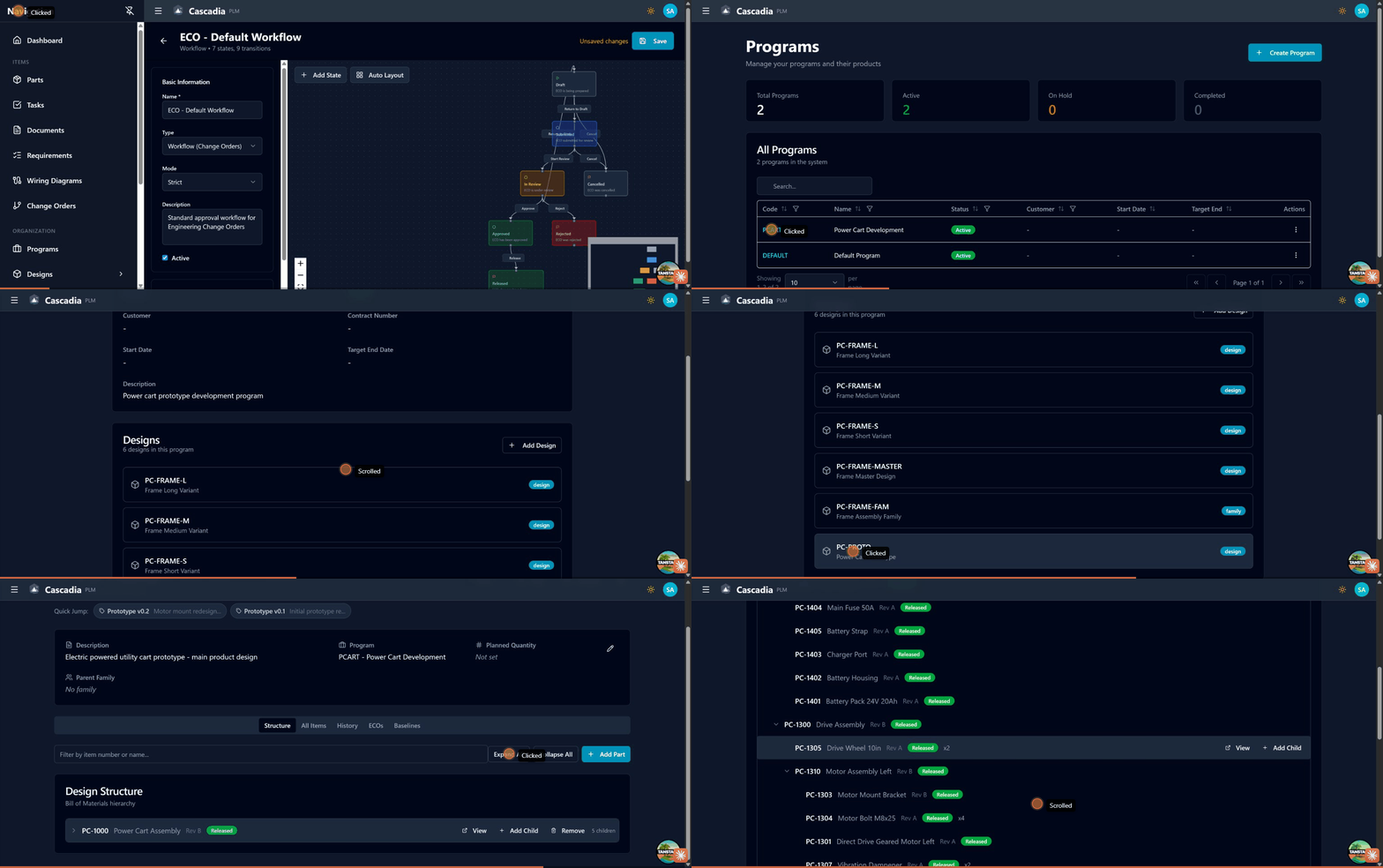 Navigating programs and designs: viewing program details, designs list, and BOM hierarchy.
Programs List
Navigate to Programs in the sidebar to see all programs.
Summary Statistics
| Statistic | Description |
|---|---|
| Total Programs | Count of all programs |
| Active | Programs currently in development |
| On Hold | Programs temporarily paused |
| Completed | Finished programs |
Creating a Program
- Click + Create Program in the top right
- Fill in the program details:
| Field | Description |
|---|---|
| Code | Short unique identifier (e.g., "PCART") |
| Name | Full program name (e.g., "Power Cart Development") |
| Status | Active, On Hold, or Completed |
| Customer | Customer or stakeholder name |
| Contract Number | External contract reference |
| Start Date | Program start date |
| Target End Date | Planned completion date |
| Description | Program overview and objectives |
- Click Create Program to save
Program Detail View
Click on a program code to open the detail view.
The program detail page shows:
Overview Section
- Program code and status
- Customer and contract information
- Start and target end dates
- Description
Designs Section
- List of all designs in this program
- Design type badges (design, family)
- + Add Design button to create new designs
Designs Management
Design Types
Cascadia supports two design types:
| Type | Purpose |
|---|---|
| Design | Standard design for a product variant |
| Family | Parent design that groups related variants |
Design Hierarchy
Designs can be organized hierarchically:
Family (PC-FRAME-FAM - Frame Assembly Family)
  ├── Design (PC-FRAME-L - Frame Long Variant)
  ├── Design (PC-FRAME-M - Frame Medium Variant)
  └── Design (PC-FRAME-S - Frame Short Variant)
This allows:
- Grouping related product variants
- Sharing common components
- Managing variant-specific differences
Creating a Design
From a program detail page:
- Click + Add Design in the Designs section
- Fill in the design details:
| Field | Description |
|---|---|
| Code | Short unique identifier (e.g., "PC-PROTO") |
| Name | Design name (e.g., "Power Cart Prototype") |
| Description | Design purpose and scope |
| Type | Design or Family |
| Parent Family | Optional parent design for variants |
| Planned Quantity | Expected production quantity |
- Click Create Design to save
Design Detail View
Click on a design to open the detail view.
Header Information
The header shows:
- Design code with type badge (design/family)
- "Main" badge for the main branch
- "Change Control" badge when under ECO control
- Branch selector dropdown
- Edit and Archive buttons
Metadata Section
- Description
- Program link
- Planned quantity
- Parent family (if applicable)
Tabs
| Tab | Description |
|---|---|
| Structure | BOM hierarchy for the design |
| All Items | List of all items in the design |
| History | Version history and commits |
| ECOs | Change orders affecting this design |
| Baselines | Tagged snapshots of the design |
Design Structure Tab
The Structure tab shows the Bill of Materials hierarchy for the design.
Features:
- Expandable tree view of the BOM
- Filter by item number or name
- Expand All / Collapse All buttons
- + Add Part to add items to the design
All Items Tab
Lists all items belonging to this design:
Features:
- Search items by name or number
- Filter by item type (Part, Document, etc.)
- Filter by state (Draft, Released, etc.)
- Click item number to navigate to detail
History Tab
Shows the version history and commits for the design.
ECOs Tab
Lists all Engineering Change Orders that affect this design:
- ECO number and name
- Current status
- Number of affected items
- Branch name (e.g., "eco/ECO-002")
Baselines Tab
Baselines are tagged snapshots of the design at a point in time:
- Release baselines (production releases)
- Review baselines (formal reviews)
- Custom baselines for any milestone
Working with Branches
Main Branch
The main branch represents the current released state:
- Contains all released revisions
- Read-only for direct modifications
- Updated when ECOs are released
ECO Branches
When an ECO is created:
- A branch is created for the affected design(s)
- Changes are made on the ECO branch
- When released, the branch merges to main
- Revisions are assigned during merge
Branch Selector
Use the branch dropdown to:
- View the design on different branches
- See work-in-progress on ECO branches
- Compare branch states
Design Families
Creating a Family
- Create a new design with type "Family"
- This becomes the parent for variants
Adding Variants
- Create new designs with type "Design"
- Select the family as "Parent Family"
- Variants inherit the family structure
Benefits
- Shared BOM components across variants
- Variant-specific customizations
- Unified change management
Best Practices
Program Organization
- Create separate programs for distinct projects
- Use meaningful program codes
- Document program objectives clearly
Design Structure
- Use families for product variants
- Keep design scope focused
- Plan the BOM hierarchy before creating items
Version Control
- Use ECOs for all changes to released designs
- Create baselines at key milestones
- Document changes in ECO descriptions
Next Steps
- Parts Management - Creating and managing parts
- Change Orders - Making controlled changes
- Workflows & Lifecycles - State management