Change Orders (ECO/ECN)
Change Orders are the formal mechanism for managing modifications to released items in Cascadia PLM. They provide traceability, approval workflows, and coordinated state management.
Types of Change Orders
| Type | Full Name | Purpose |
|---|---|---|
| ECO | Engineering Change Order | Proposes changes to engineering items |
| ECN | Engineering Change Notice | Notifies stakeholders of approved changes |
| ECR | Engineering Change Request | Requests a change (precedes ECO) |
Cascadia uses a unified Change Order item type that can represent any of these through configuration.
Change Order Lifecycle
A typical ECO workflow:
Draft → Impact Review → Technical Review → Approved → Released → Closed
                                                    ↘ Cancelled
Workflow States
| State | Description |
|---|---|
| Draft | Initial creation, gathering affected items |
| Impact Review | Assessing scope and impact of changes |
| Technical Review | Engineering validation of proposed changes |
| Approved | Changes authorized, ready for implementation |
| Released | Changes implemented, affected items updated |
| Closed | Change order completed |
| Cancelled | Change order rejected or abandoned |
Change Orders List Overview
The Change Orders page displays all ECOs with summary statistics and filtering options.
Summary Statistics
At the top of the page, you'll see summary cards showing:
| Statistic | Description |
|---|---|
| Total ECOs | Count of all change orders |
| Draft | ECOs in initial creation |
| In Review | ECOs awaiting approval |
| Released | ECOs that have been implemented |
Filtering and Search
- Search: Find ECOs by item number or title
- Column Sorting: Click column headers to sort
- Status Filters: Filter by workflow state
Creating a Change Order
- Navigate to Change Orders in the sidebar
- Click + Create ECO in the top right
- Fill in the required fields:
Required Fields
| Field | Description |
|---|---|
| Design | The design this ECO affects |
| Item Number | Unique identifier (auto-generated, e.g., ECO-001) |
| Title | Brief description of the change |
Optional Fields
| Field | Description |
|---|---|
| Description | Detailed explanation of the change |
| Reason for Change | Why this change is needed |
| Priority | Urgency level (Low, Medium, High, Critical) |
| Type | ECO, ECN, or ECR |
- Click Create to save the ECO in Draft state
ECO Detail View
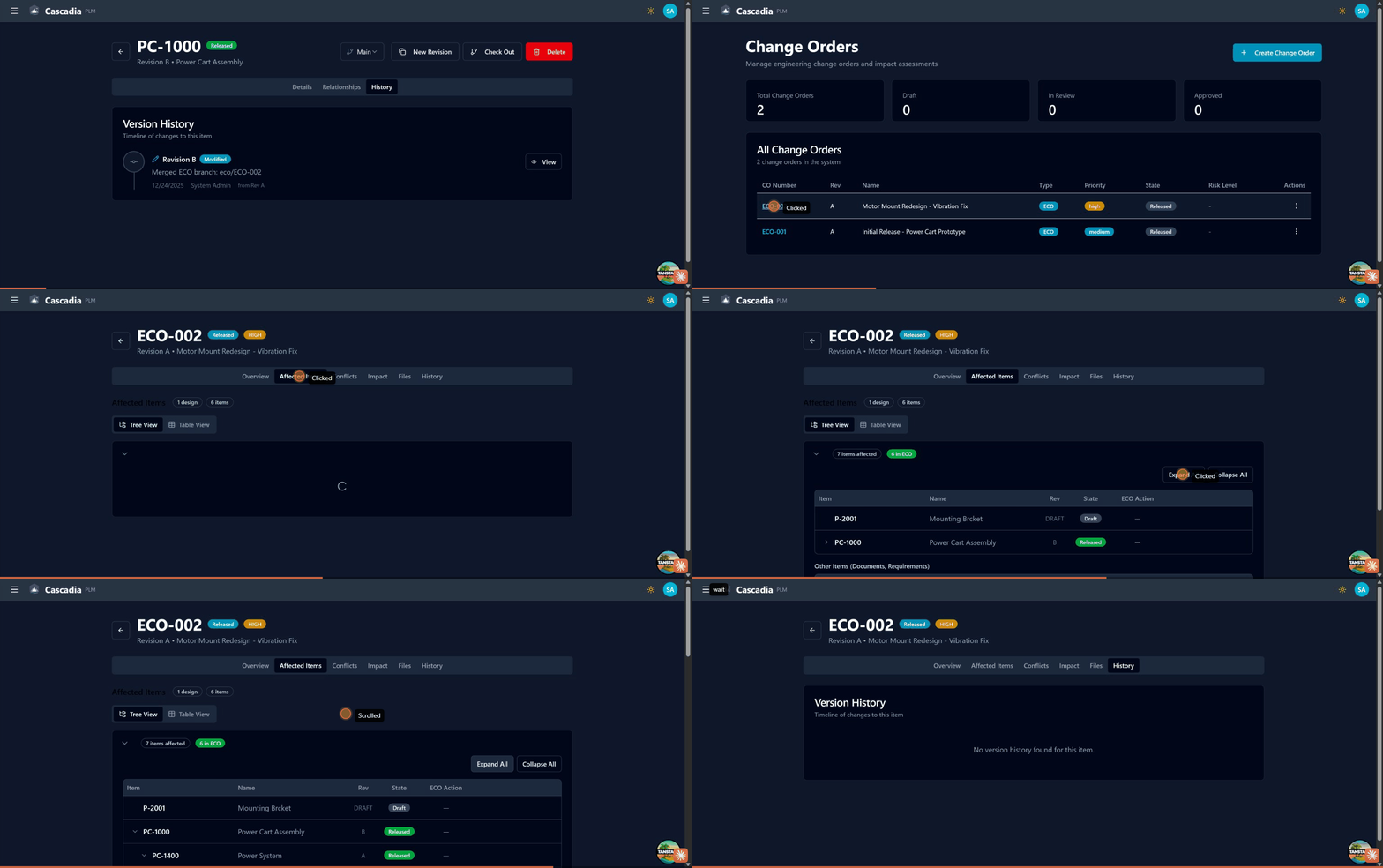 Viewing an ECO: overview, affected items tree, and workflow history.
Click on any ECO number to open the detail view. The detail page has three tabs: Overview, Affected Items, and History.
Header Information
The header shows:
- ECO number with state badge (Draft, In Review, etc.)
- ECO title
- Branch indicator showing the ECO's working branch
- Action buttons based on available workflow transitions
Overview Tab
The Overview tab displays:
Basic Information
- Item Number and Title
- Current State
- Description and Reason for Change
Change Details
- Priority level
- Type (ECO/ECN/ECR)
- Target completion date (if set)
Affected Items Tab
The Affected Items tab shows all items included in the change order with a hierarchical tree view.
Tree Structure
- Expand/collapse affected items to see their children
- Each item shows: Item Number, Revision, Name, Type, State
- Change action badge indicates what will happen (Release, Revise, etc.)
Adding Affected Items
- Click + Add Affected Item
- Search for the item to include
- Select the change action
- Confirm the addition
History Tab
Shows the complete workflow history:
- State transitions with timestamps
- User who performed each action
- Approval votes and comments
- Guard evaluation results
Adding Affected Items
Affected items are the parts, documents, or other items that will be modified by the change order.
Change Actions
Each affected item has a change action that describes what will happen:
| Action | Description | Effect on Item |
|---|---|---|
| Release | First release of a new item | Item transitions through lifecycle to Released |
| Revise | Create a new revision | New revision created, original superseded |
| Obsolete | Mark item as obsolete | Item transitions to Obsolete state |
| Replace | Replace with another item | Original obsoleted, replacement released |
| Add | Add to an assembly | Item added to BOM |
| Remove | Remove from assembly | Item removed from BOM |
Adding Items
- Open the Change Order
- Go to the Affected Items tab
- Click Add Affected Item
- Search for and select the item
- Choose the change action
- Optionally specify a target state
Workflow Transitions
Executing a Transition
- Open the Change Order
- View available transitions in the toolbar or sidebar
- Click the transition button (e.g., "Submit for Review")
- If required, add comments
- Confirm the transition
Guards and Validation
Before a transition executes, guards are evaluated:
- Field guards: Required fields must be populated
- Role guards: User must have appropriate roles
- Approval guards: Sufficient approvals must be received
- Lifecycle effects: Affected item guards are validated (if configured)
If any guard fails, the transition is blocked with an error message.
Approvals
For transitions requiring approval:
- Designated approvers receive notifications
- Each approver reviews and votes (Approve/Reject)
- Approvers can add comments
- Once sufficient approvals are collected, the transition can proceed
Lifecycle Effects
Lifecycle effects coordinate the state of affected items with the ECO workflow. When an ECO transitions, its affected items can automatically progress through their lifecycles.
How It Works
ECO Workflow State    │ Part Lifecycle (Release Action)
──────────────────────┼─────────────────────────────────
Draft                 │ Preliminary (no change)
        ↓             │
Impact Review         │ Preliminary (no mapping defined)
        ↓             │
Technical Review      │ Under Review ← triggered by effect
        ↓             │
Approved              │ Released ← triggered by effect
When the ECO transitions to "Technical Review", parts with the "Release" action automatically transition from "Preliminary" to "Under Review".
Configuration
Lifecycle effects are configured per ECO workflow transition in the workflow builder:
- Change Action: Which affected item action this applies to (Release, Revise, etc.)
- Target Lifecycle: The lifecycle definition to use
- From State: The current state the item must be in
- To State: The state to transition the item to
- Validate Guards: Whether to check lifecycle guards before the ECO can transition
Guard Pre-validation
When "Validate Guards" is enabled, the ECO transition will fail if any affected item's lifecycle guards don't pass. This ensures:
- All items are ready before the ECO proceeds
- Issues are caught early in the process
- No partial transitions occur
Example: Requiring Description
- Part lifecycle has guard: "description is_not_empty" on "Under Review → Released"
- ECO has lifecycle effect: Release items transition to "Released" when ECO becomes "Approved"
- User tries to approve ECO with a part that has no description
- Transition fails: "Part P-00001: Description is required before release"
- User adds description to part
- Retry succeeds
Impact Assessment
Before approving a change, assess its impact:
Where-Used Analysis
View all assemblies and products that use affected items:
- Open the Change Order
- Go to Impact tab
- Review the where-used tree for each affected item
Change Summary
The impact assessment shows:
- Total number of affected items
- Items by change action type
- Downstream impacts (where-used)
- Related change orders
- Estimated scope
Workflow History
Every state change is recorded in the audit trail:
- Transition name and timestamp
- User who executed the transition
- Previous and new state
- Comments and vote records
- Guard evaluation results
Access history from the History tab on any change order.
Best Practices
Planning Changes
- Gather all affected items first: Add all items before submitting for review
- Document the reason: Explain why the change is necessary
- Assess impact early: Review where-used before proceeding
- Coordinate with stakeholders: Notify affected teams
During Review
- Use comments: Document discussions and decisions
- Track issues: Create tasks for action items
- Iterate if needed: Return to draft for significant changes
After Release
- Verify implementation: Confirm changes were applied correctly
- Close promptly: Don't leave released ECOs open
- Archive documentation: Ensure change rationale is preserved
Troubleshooting
Transition Blocked
If a transition is blocked:
- Check the error message for which guard failed
- For field guards: populate the required field
- For role guards: ensure you have the required role
- For approval guards: wait for more approvals
- For lifecycle effects: fix the affected item issue
Affected Item Not Updating
If an affected item doesn't change state:
- Verify a lifecycle effect is configured for that transition
- Check the change action matches the effect configuration
- Confirm the item is in the expected "from state"
- Review the item's lifecycle for the transition path
See Also
- Workflows & Lifecycles - Understanding state management
- Lifecycle Management - Admin configuration
- Parts Management - Working with parts