Lifecycle Management
This guide covers how to create and configure lifecycles, workflows, and lifecycle effects for ECO-to-Item coordination.
Overview
Cascadia uses two types of state machine definitions:
- Lifecycles: Passive state machines for Parts, Documents, Requirements
- Workflows: Active approval processes for Change Orders
The key innovation is lifecycle effects, which coordinate ECO workflow transitions with affected item lifecycle transitions.
Creating a Lifecycle
Via the Workflow Builder
- Navigate to Admin > Workflows
- Click New Lifecycle
- Configure the definition:
- Name: e.g., "Parts - Default"
- Description: Purpose of this lifecycle
- Applicable Item Types: Select Part, Document, etc.
- Use the visual editor to design states and transitions
- Click Save
Lifecycle Structure
A typical part lifecycle:
┌─────────────┐     ┌──────────────┐     ┌──────────┐
│ Preliminary │ ──→ │ Under Review │ ──→ │ Released │
└─────────────┘     └──────────────┘     └──────────┘
                                               │
                                               ↓
                                         ┌───────────┐
                                         │ Obsolete  │
                                         └───────────┘
State Configuration
For each state, configure:
| Property | Description | Example |
|---|---|---|
| Name | Display name | "Under Review" |
| Color | Badge color | blue, green, yellow |
| Description | What this state means | "Item is being reviewed by engineering" |
| Is Initial | Starting state for new items | Yes for "Preliminary" |
| Is Final | End state (typically locked) | Yes for "Released", "Obsolete" |
Transition Configuration
For each transition, configure:
| Property | Description |
|---|---|
| Name | Action name (e.g., "Submit for Review") |
| From State | Source state |
| To State | Destination state |
| Guards | Conditions required for transition |
| Allowed Roles | Who can execute this transition |
Creating a Workflow
Workflows are similar to lifecycles but include additional features for approval processes.
Via the Workflow Builder
- Navigate to Admin > Workflows
- Click New Workflow
- Configure:
- Name: e.g., "ECO - Standard"
- Workflow Type: Strict (enforced path) or Flexible
- Applicable Item Types: Select ChangeOrder
- Design states and transitions
- Configure actions, approvals, and lifecycle effects
- Click Save
Workflow-Specific Features
In addition to states and transitions, workflows support:
- Actions: Operations performed during transitions
- Approval Requirements: Voting requirements for transitions
- Lifecycle Effects: ECO-to-Item state coordination
Configuring Lifecycle Effects
Lifecycle effects are the key feature for ECO-to-Item coordination. They define how affected items should progress through their lifecycles when an ECO transitions.
Accessing the Configuration
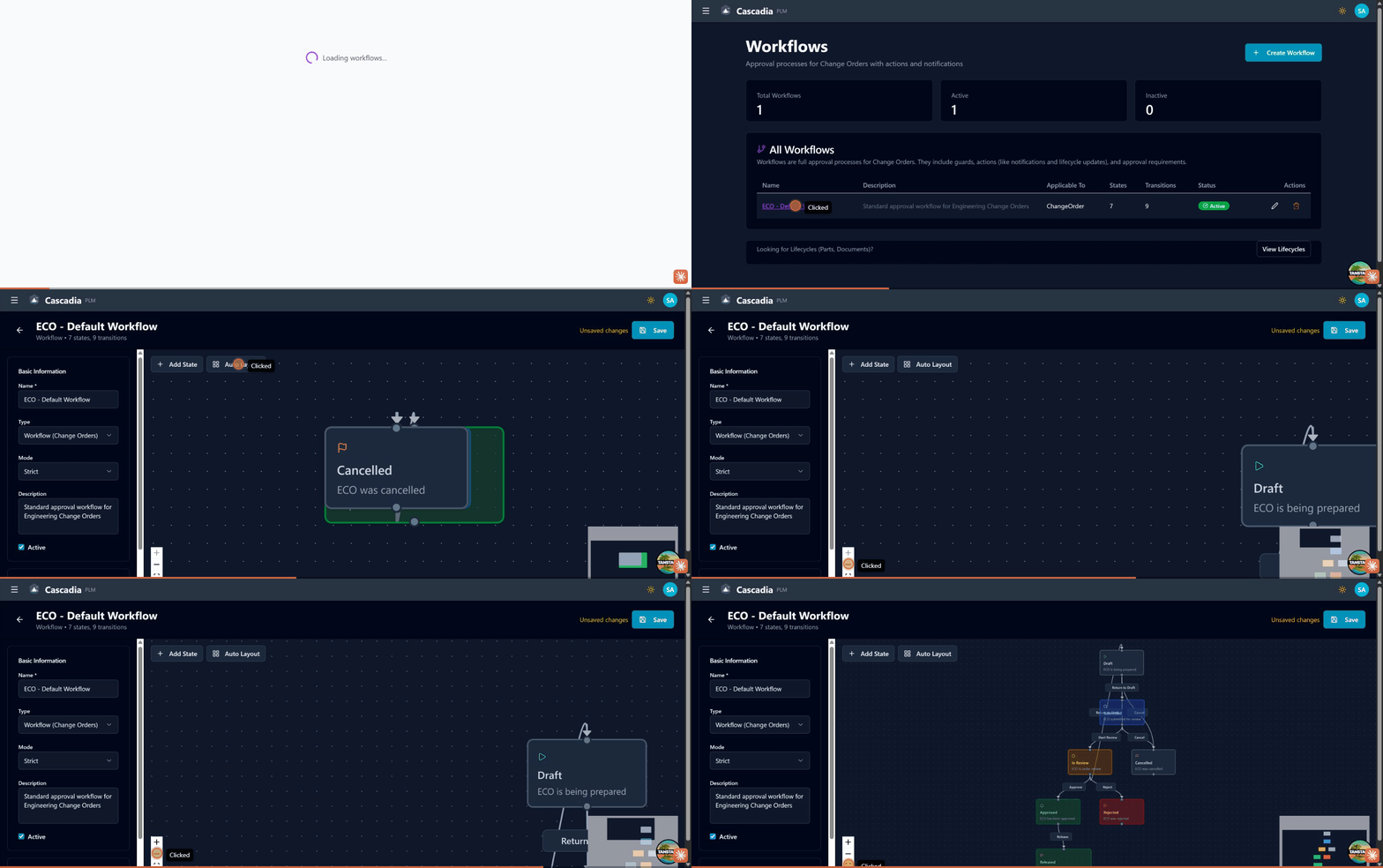 The visual workflow builder with states and transitions for ECO workflows.
- Open a workflow in the Workflow Builder
- Select a transition (click the arrow between states)
- In the properties panel, scroll to Lifecycle Effects
Adding a Lifecycle Effect
Click Add Lifecycle Effect and configure:
| Field | Description |
|---|---|
| Effect Name | Descriptive name (e.g., "Release Parts to Production") |
| Change Action | Which affected item action this applies to |
| Target Lifecycle | The lifecycle definition to use |
| From State | Current state the item must be in |
| To State | State to transition the item to |
| Validate Guards | Check lifecycle guards before ECO transition |
Change Actions
Effects are specific to the change action assigned to affected items:
| Action | Description | Typical Effect |
|---|---|---|
release | First release of new item | Preliminary → Released |
revise | Create new revision | Applies to new revision |
obsolete | Mark obsolete | Released → Obsolete |
replace | Replace with another | Obsolete original, release replacement |
add | Add to assembly | May not need lifecycle effect |
remove | Remove from assembly | May not need lifecycle effect |
Example Configuration
For an ECO workflow transition "Submit for Approval":
Effect 1: Release Parts
Effect Name: Promote Parts to Review
Change Action: Release
Target Lifecycle: Parts - Default
From State: Preliminary
To State: Under Review
Validate Guards: ✓
Effect 2: Release Documents
Effect Name: Promote Documents to Review
Change Action: Release
Target Lifecycle: Documents - Default
From State: Draft
To State: Under Review
Validate Guards: ✓
This ensures when an ECO is submitted for approval, all parts and documents with the "Release" action are promoted to "Under Review" state.
Guard Pre-validation
When Validate Guards is enabled:
- Before the ECO transitions, all affected items' lifecycle guards are evaluated
- If any guard fails, the ECO transition is blocked
- The error message indicates which item and guard failed
- User must fix the issue and retry
This prevents partial transitions where the ECO proceeds but some items can't be updated.
Chained Transitions
You can define multiple lifecycle effects for the same change action to create chained transitions:
Effect 1: Preliminary → Under Review
Effect 2: Under Review → Released
When the ECO transitions, the system will:
- Find items in "Preliminary" state
- Transition them to "Under Review"
- Then transition them to "Released"
- All guards are validated at each step
This enables "express release" workflows where a single ECO transition promotes items through multiple lifecycle states.
Design Patterns
Standard Release Workflow
ECO: Draft → Impact Review → Technical Review → Approved → Released

Lifecycle Effects:
├─ Impact Review → Technical Review
│   └─ Release items: Preliminary → Under Review
│
└─ Technical Review → Approved
    └─ Release items: Under Review → Released
Express Release Workflow
ECO: Draft → Released

Lifecycle Effects:
└─ Draft → Released
    ├─ Effect 1: Preliminary → Under Review
    └─ Effect 2: Under Review → Released
Revision Workflow
For revise actions, effects apply to the new revision:
ECO: Draft → Approved

Lifecycle Effects:
└─ Draft → Approved
    ├─ Release items: Preliminary → Released
    └─ Revise items: Preliminary → Released (new rev)
Obsolescence Workflow
ECO: Draft → Approved

Lifecycle Effects:
└─ Draft → Approved
    └─ Obsolete items: Released → Obsolete
Troubleshooting
Effect Not Firing
- Check change action: Effect must match the affected item's change action
- Check current state: Item must be in the "From State" specified
- Check lifecycle match: Item's lifecycle must match the effect's target lifecycle
- Check transition exists: The lifecycle must have the specified transition
Guard Validation Failing
- Identify the failing guard: Error message shows which item/guard failed
- Fix the item: Update the item to satisfy the guard
- Retry the ECO transition
Items Already Past Target State
If an item is already in or past the "To State", the effect is skipped with a warning. The ECO transition proceeds, but that item isn't modified.
Multiple Lifecycles for Same Item Type
If multiple lifecycles apply to the same item type:
- Each item is assigned a specific lifecycle
- Effects only apply to items with the matching lifecycle
- Configure effects for each lifecycle separately
Best Practices
Design Lifecycles First
- Define lifecycles for all item types before creating ECO workflows
- Ensure lifecycles have clear, progressive states
- Add appropriate guards at critical transitions
Map ECO to Lifecycle Transitions
- Determine which ECO states correspond to lifecycle states
- Configure effects at the appropriate ECO transitions
- Enable guard validation for critical transitions
Test Before Production
- Create test items in initial states
- Create a test ECO with affected items
- Execute the workflow and verify item state changes
- Check guard validation works as expected
Document Your Configuration
- Use descriptive effect names
- Document the expected behavior in workflow descriptions
- Create a visual diagram of ECO-to-lifecycle mappings
See Also
- Workflows & Lifecycles - User guide
- Change Orders - Using change orders
- Custom Item Types - Assigning lifecycles to item types