Document Control
Documents in Cascadia PLM provide controlled storage and versioning for technical documentation, specifications, drawings, and other files associated with your products.
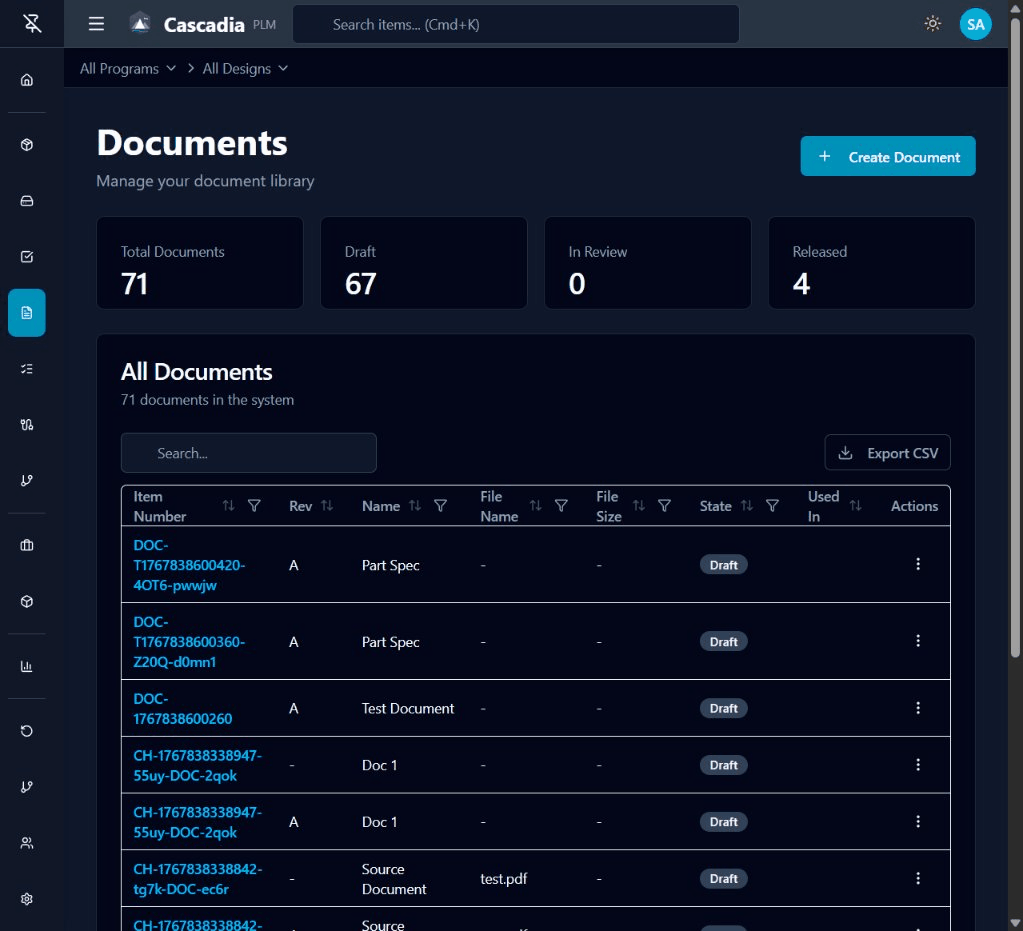 The Documents page showing all documents with file details, state, and usage information.
Documents List Overview
The Documents page displays all documents in the system with summary statistics and filtering options.
Summary Statistics
At the top of the page, you'll see four summary cards:
| Statistic | Description |
|---|---|
| Total Documents | Count of all documents in the system |
| Draft | Documents in initial creation or editing |
| In Review | Documents awaiting approval |
| Released | Approved and published documents |
Filtering and Search
- Design Filter: Filter documents by design using the dropdown
- Search: Find documents by item number or name
- Column Sorting: Click column headers to sort
Creating a Document
- Navigate to Documents in the sidebar or click View Documents from the dashboard
- Click the + Create Document button in the top right
- Fill in the document details:
Required Fields
| Field | Description |
|---|---|
| Design | The design this document belongs to |
| Item Number | Unique identifier (auto-generated, e.g., DOC-1001) |
| Revision | Version identifier (default: A) |
Optional Fields
| Field | Description |
|---|---|
| Name | Descriptive name (e.g., "Technical Specification") |
| Description | Detailed description of the document purpose |
| File Name | Name of the attached file (e.g., "specification.pdf") |
| MIME Type | File type (e.g., "application/pdf") |
| File Size | Size in bytes |
| Storage Path | Vault storage location |
- Click Create Document to save
Document Types
Documents can represent various types of technical content:
- Specifications: Technical requirements and standards
- Drawings: CAD files, schematics, and blueprints
- Procedures: Work instructions and processes
- Reports: Test results, analyses, and reviews
- Manuals: User guides and maintenance documentation
File Management
Supported File Formats
Cascadia supports a wide range of file formats:
| Category | Formats |
|---|---|
| Documents | PDF, DOC, DOCX, ODT, TXT |
| Spreadsheets | XLS, XLSX, ODS, CSV |
| Presentations | PPT, PPTX, ODP |
| CAD | DWG, DXF, STEP, IGES |
| Images | PNG, JPG, SVG, BMP, TIFF |
File Upload
- Maximum file size: 500 MB
- Drag and drop files onto the upload area
- Or click Select Files to browse
File Versioning
Each document revision maintains:
- Original file name and type
- Upload timestamp
- User who uploaded
- File size and checksum
Check-Out/Check-In Workflow
Checking Out
To edit a document's file:
- Open the document detail view
- Click Check Out in the header
- The document is locked to prevent concurrent edits
- Download the current file version
Making Changes
While checked out:
- Edit the file locally
- Return to the document in Cascadia
- Upload the modified file
- Add revision notes if needed
Checking In
To release your changes:
- Upload the updated file
- Click Check In
- The lock is released
- Changes are saved to the current branch
Revision Control
Documents follow the same revision control as parts:
Making Revisions
- Released documents cannot be modified directly
- Create an ECO to revise a document
- Work on the document in the ECO branch
- When released, revision increments automatically
Revision Tracking
Each revision tracks:
- Who made the change
- When it was changed
- What ECO authorized the change
- Previous revision reference
Linking Documents to Parts
Documents can be linked to parts through relationships:
- Open the part's Relationships tab
- Click + New Relationship Type or use an existing type
- Add the document as a related item
- Specify the relationship type (e.g., "Drawing", "Specification")
Common relationship types:
- Drawing: CAD files and technical drawings
- Specification: Technical requirements
- Procedure: Manufacturing or test procedures
- BOM: Bill of materials documents
Best Practices
Document Naming
- Use descriptive, searchable names
- Include document type in the name
- Follow consistent naming conventions
File Organization
- Use appropriate file formats for the content type
- Keep file sizes manageable when possible
- Include metadata in the file itself where supported
Version Management
- Always check out before editing
- Add meaningful notes when checking in
- Review changes before submitting ECOs
Next Steps
- Parts Management - Managing parts
- Change Orders - Making controlled changes
- Requirements - Managing requirements