Workflows & Lifecycles
Cascadia PLM uses a dual state management system to control how items progress through their lifecycle and how changes are approved.
Two Types of Definitions
Cascadia supports two distinct types of state machine definitions:
| Type | Purpose | Features | Used By |
|---|---|---|---|
| Lifecycle | Passive state machines | Guards only, no approvals | Parts, Documents, Requirements |
| Workflow | Active approval processes | Guards, actions, approvals, lifecycle effects | Change Orders |
Lifecycles
Lifecycles define the states an item can be in and the allowed transitions between states. They are passive - transitions only occur when explicitly triggered by a user or system action.
Example: Part Lifecycle
Preliminary → Under Review → Released → Superseded
                                    ↘ Obsolete
Key characteristics:
- Define valid states for item types
- Control which transitions are allowed
- Support guards (conditions that must be met)
- No built-in approval voting
- Transitions triggered manually or by workflow effects
Workflows
Workflows are active approval processes used by Change Orders. They include all lifecycle features plus:
- Approval requirements (voting)
- Transition actions (send notifications, update fields, etc.)
- Lifecycle effects (coordinate changes to affected items)
Example: ECO Workflow
Draft → Impact Review → Technical Review → Approved → Released
Workflows List Overview
The Workflows page displays all workflow definitions with summary statistics.
Summary Information
Each workflow card displays:
- Workflow name and description
- Number of states and transitions
- Item types using this workflow
- Active/inactive status
Filtering
- Search: Find workflows by name
- Type Filter: Show workflows, lifecycles, or both
Lifecycles List Overview
The Lifecycles page displays all lifecycle definitions.
Summary Information
Each lifecycle card displays:
- Lifecycle name and description
- Number of states and transitions
- Item types using this lifecycle
States
Each state in a lifecycle or workflow has:
| Property | Description |
|---|---|
| Name | Display name (e.g., "Under Review") |
| Color | Visual indicator in the UI |
| Description | Optional explanation of the state |
| Initial | Whether items start in this state |
| Final | Whether this is an end state |
State Types
- Initial States: Where new items begin (e.g., "Preliminary", "Draft")
- Intermediate States: Work-in-progress states (e.g., "Under Review", "Approved")
- Final States: End states that typically lock the item (e.g., "Released", "Obsolete", "Cancelled")
State Colors
States use colors for quick visual identification:
| Color | Common Usage |
|---|---|
| Gray | Draft, initial states |
| Blue | In progress, under review |
| Yellow | Pending approval |
| Green | Released, approved |
| Red | Rejected, cancelled |
| Purple | Obsolete, superseded |
Transitions
Transitions define the allowed paths between states. Each transition has:
| Property | Description |
|---|---|
| Name | Display name for the transition action |
| From State | Source state |
| To State | Destination state |
| Description | Optional explanation |
| Guards | Conditions that must pass before transitioning |
| Allowed Roles | Users who can execute this transition |
| Actions | Operations to perform (workflows only) |
| Approval Requirement | Voting requirements (workflows only) |
| Lifecycle Effects | Item state coordination (workflows only) |
Guards
Guards are conditions that must be satisfied before a transition can occur. Guard types include:
Field Value Guards
Check that a field meets a condition:
equals/not_equalscontainsis_empty/is_not_emptygreater_than/less_than/greater_or_equal/less_or_equal
Example: Require description before release
Field: description
Operator: is_not_empty
Error: "Description is required before release"
User Role Guards
Verify the user has required roles:
Required Roles: [Engineer, Quality]
Require All: false  (any matching role is sufficient)
Approval Count Guards
Check that sufficient approvals have been received:
Required Count: 2
Required Roles: [Manager, Lead Engineer]
Actions (Workflows Only)
Actions execute during transitions. Supported action types:
| Action Type | Description |
|---|---|
send_notification | Email users about the transition |
update_field | Modify a field value on the item |
create_task | Create a follow-up task |
push_lifecycle_changes | Update affected item states (legacy) |
execute_script | Run custom logic |
Actions can be configured to run before or after the transition completes.
Workflow Notifications
Notifications keep stakeholders informed when workflow transitions occur. They are processed asynchronously via the background job system.
Configuring Notifications
- Select a transition in the Workflow Builder
- In the Actions section, add a "Send Notification" action
- Configure recipients:
- Users: Select individual users to notify
- Roles: Notify all users with a specific role (expands dynamically)
- Save the workflow
Recipient Resolution
When a notification action executes:
- Role Expansion: Role-based recipients are expanded to all active users with that role
- Permission Filtering: Recipients are filtered to only those with access to the item's design
- Actor Exclusion: The user who triggered the transition is automatically excluded (they don't need to be notified of their own action)
- Email Validation: Recipients without valid email addresses are skipped
Notification Content
Email notifications include:
| Field | Description |
|---|---|
| Subject | [Cascadia] {Item Type} {Item Number} - {Transition Name} |
| Item Details | Item number, type, and direct link |
| Transition Info | From state → To state |
| Actor | Who performed the transition |
| Comments | Optional transition comments |
| ECO Reference | Change order number (if applicable) |
Monitoring Notifications
Notification jobs can be monitored in Admin > Jobs:
- Job type:
notification.workflow.transition - Status shows pending, completed, or failed
- View details to see recipient list and any failures
- Retry failed notifications from the job detail view
See Job Management for more details.
Approval Requirements (Workflows Only)
For workflows requiring approval:
| Setting | Description |
|---|---|
| Required Count | Number of approvals needed |
| Required Roles | Which roles can approve (optional) |
| Require All | Whether all specified roles must approve |
Users vote "Approve" or "Reject" with optional comments. The transition only proceeds when the approval count is met.
Using the Workflow Builder
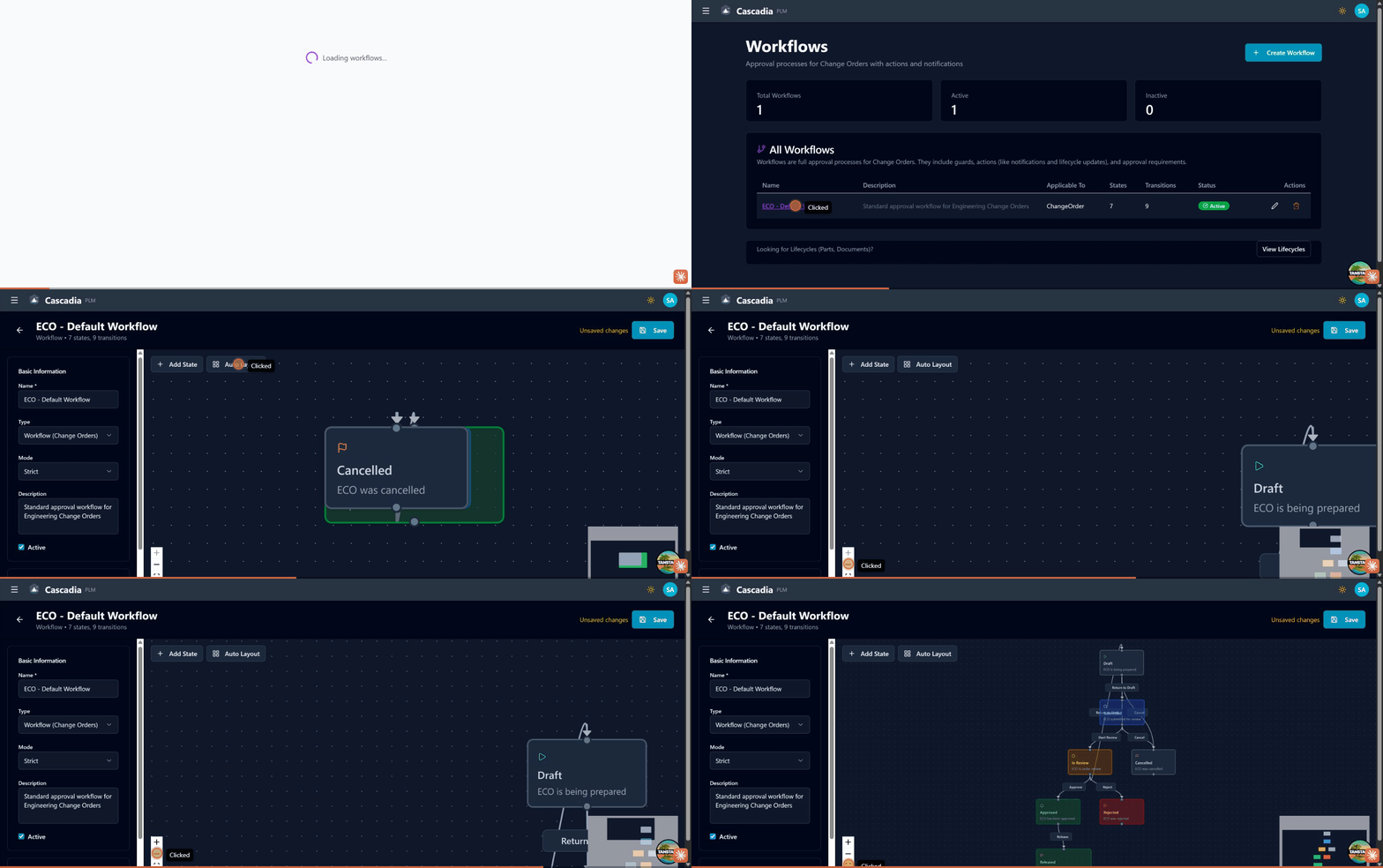 The visual workflow builder: designing states and transitions for ECO approval workflows.
Access the workflow builder from Workflows in the sidebar.
Creating a New Definition
- Click + New Workflow or + New Lifecycle
- Enter a name and description
- Select applicable item types
- Use the visual editor to add states and transitions
Visual Editor
The workflow builder uses a drag-and-drop interface:
Canvas Controls
- Zoom: Use the +/- buttons or mouse wheel
- Pan: Click and drag on empty canvas area
- Fit View: Click the fit button to center the diagram
Working with States
- Add State: Click the "Add State" button
- Move State: Drag a state to reposition it
- Edit State: Click a state to select it, then edit in the side panel
- Delete State: Select and click the delete button
Working with Transitions
- Add Transition: Click "Add Transition" and select from/to states
- Edit Transition: Click the transition line to select it
- Delete Transition: Select and click the delete button
Configuring States
Select a state to open the properties panel:
- Name: Display name for the state
- Color: Visual indicator color
- Description: Optional explanation
- Initial: Check if items start in this state
- Final: Check if this is an end state
Configuring Transitions
Select a transition to open the properties panel:
- Basic Info: Name and description
- Guards: Add conditions for the transition
- Actions: Configure operations to perform (workflows only)
- Approval: Set voting requirements (workflows only)
- Lifecycle Effects: Configure affected item coordination (workflows only)
Adding Guards
- Select the transition
- Click "Add Guard" in the Guards section
- Choose the guard type:
- Field Value: Check a field condition
- User Role: Require specific roles
- Approval Count: Require votes
- Configure the guard parameters
- Add an error message to display when the guard fails
Adding Lifecycle Effects
For workflow transitions that should update affected items:
- Select the transition
- Click "Add Effect" in the Lifecycle Effects section
- Configure:
- Change Action: Which affected item action (Release, Revise, etc.)
- Target Lifecycle: The lifecycle to use
- From State: Required current state of affected items
- To State: Target state for affected items
- Validate Guards: Whether to pre-check affected item guards
Default Definitions
Cascadia includes default workflow and lifecycle definitions:
ECO Default Workflow
The default workflow for Change Orders:
Draft → Impact Review → Technical Review → Approved → Released → Closed
Includes lifecycle effects to transition affected items through their lifecycles.
Part Default Lifecycle
The default lifecycle for Parts:
Preliminary → Under Review → Released
                          ↘ Obsolete
Document Default Lifecycle
The default lifecycle for Documents:
Draft → In Review → Approved → Released
                            ↘ Obsolete
Assigning Definitions to Item Types
Lifecycles and workflows are linked to item types through configuration:
- Create the lifecycle/workflow definition
- In the definition settings, select applicable item types
- Save changes
Items of that type will then use the assigned definition.
Viewing Item State
On any item's detail page:
- Current state is shown as a colored badge in the header
- Available transitions appear as action buttons
- Workflow history shows the audit trail of state changes
Best Practices
Designing Lifecycles
- Start simple: Begin with basic states and add complexity as needed
- Use descriptive names: "Submit for Review" is clearer than "Transition 1"
- Add guards thoughtfully: Prevent invalid transitions rather than cleaning up after
- Document states: Use descriptions to explain what each state means
- Test before activating: Validate the workflow logic before going live
Managing Transitions
- Require complete data: Use field guards to ensure items are complete
- Use role guards: Control who can perform critical transitions
- Add helpful error messages: Guide users on how to fix guard failures
Lifecycle Effects Best Practices
- Map all change actions: Ensure each change action has appropriate effects
- Enable guard validation: Catch issues early in the ECO process
- Consider the full path: Ensure affected items can reach their target states
Troubleshooting
Transition Not Available
If a transition button doesn't appear:
- Verify you have the required role
- Check if guards are blocking the transition
- Ensure the item is in the correct "from" state
Guard Failure
If a transition is blocked:
- Read the error message to understand what's missing
- Update the item to satisfy the guard condition
- Retry the transition
Lifecycle Effect Failure
If affected items don't update:
- Verify the lifecycle effect is configured for this transition
- Check that affected items are in the expected "from" state
- Ensure the affected item's lifecycle includes the required transition
See Also
- Change Orders - ECO/ECN workflow details
- Lifecycle Management - Admin configuration
- Parts Management - Working with parts